A common task for a report developer when learning SSRS and managing your first Reporting Services environment is to access the Report Catalog and ExecutionLog tables in the Report Server SQL database to extract report inventory and usage information.
For a long time, I’ve wanted to do something similar in Power BI — list all of my reports and which ones are used the most and least (and by whom) across all of my workspaces, but due to the nature of the Power BI Service (specifically not having a local and easily accessible juicy SQL database to mine for data) it’s been a much tougher nut to crack.
Recently, I posted a blog on my experiences learning how to query the Power BI REST API in a programmatic way using a C# console application. Expanding on this I could answer a number of report and dataset inventory questions, but now I needed usage data to go along with it.
For some time now, Microsoft has made Power BI Usage data available through the Office 365 Audit Log, but this required special Office 365 permissions outside of Power BI to use. Just recently, however, Microsoft released the Power BI Activity Log, which is a Power BI specific interface into the Office 365 Audit Log data which pertains to Power BI. This means that only Power BI (Service Admin) privileges are needed and the data can be accessed via the Power BI PowerShell cmdlets or via the Power BI Rest API!
A lot is already being written on using the PowerShell cmdlets, so I’m going to take a different approach and talk about my experience developing a simple C# console application which can connect to the Power BI REST API, query for Activity Log data for a range of dates, and save that information to a table for further reporting.
The first step along this journey was to review the much appreciated API reference page for the Get Activity Events function. Note that the Tenant.Read.All permission is required, which will require you to have the Power BI Service Administrator role assigned to you and you’ll need the Tenant.Read.All permission added to your application registration, which will require the assistance of an Azure Active Directory admin for your organization. See here for more information.
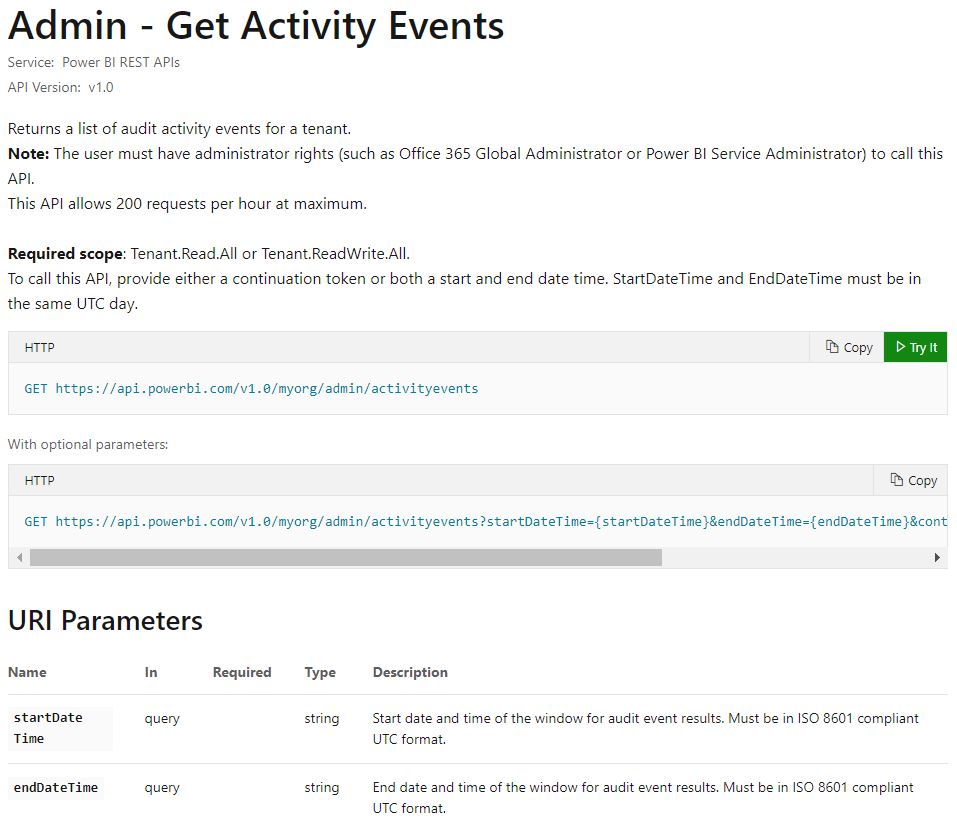
From the documentation, a request like this:

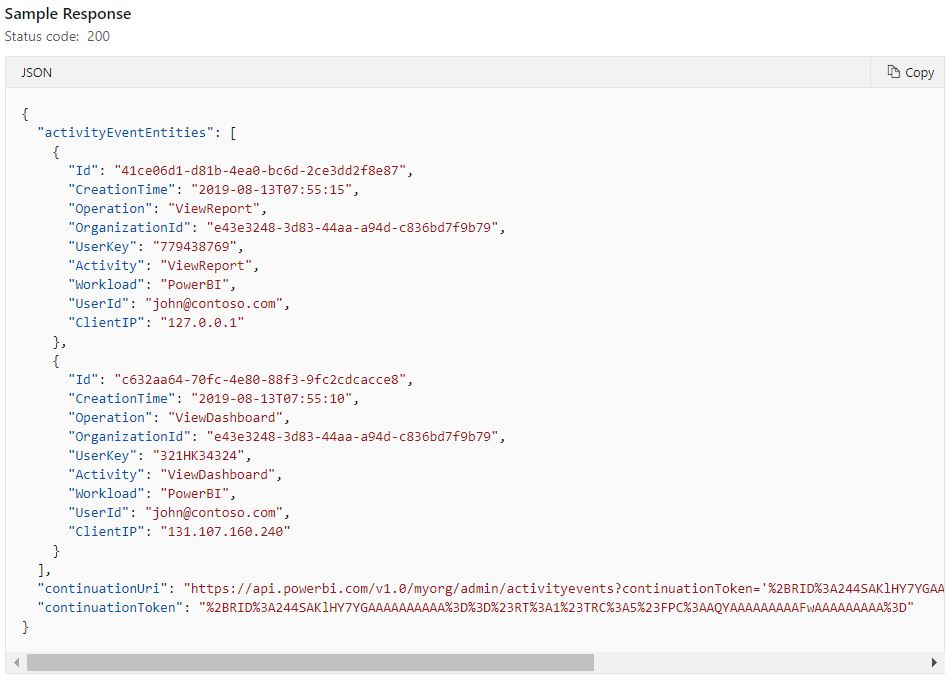
Should yield a response like this:
There are three considerations which weren’t concerns with most of the other Power BI API commands but you need to be aware of when using this new command:
- Access — You must be a Power BI Service Admin. Most Power BI API commands work whether or not you’re a service admin — they just return less data if you’re not an admin. In this case, all you’ll get is an “Unauthorized” message if you’re not an admin. Also, your application registration needs the Tenant.Read.All permission which will require the assistance of an administrator for your Azure Active Directory organization.
- You must provide a start and end date, they must be in UTC and ISO-8601 format, and they must occur within the same UTC day (so 00:00:00 – 23:59:59 is going to be a common window!) This means if you want to retrieve activity data for say, a week, you need to convert the start and end dates to UTC and then iterate through that range in 1 UTC day chunks. If you provide a start and end date that are in different UTC dates, you will receive a “BadRequest” response from the API.
- A valid request may not return all records. The number of requests is limited to between 5,000 – 10,000 results (a wide range). If your results are too big for one response, the API will send you a continuation token and if you send that back to it as your next request, it’ll send you the next chunk of your results, repeating the process until you get them all. That is, at least, what is advertised. I noticed in practice it functions a little differently. The API breaks the request into chunks, presumably one hour chunks. So, a request for 1 day of data will be broken down into 24 chunks (an initial response and then continuation tokens on the next 22 responses). It does this even for chunks that have 0 records. So, in a 1-day request, you may get 0 records and a continuation token, 0 records and a continuation token, some records and a continuation token, etc. You just have to read them all until you stop receiving continuation tokens. The PowerShell Get-PowerBIActivityEvent experiences this behavior as well (so it must be in the backend of the API command), but it automatically stitches the chunks together into a single response.

Putting Together an Application
With a basic understanding of what would be needed to to read activity data from the Power BI Rest API, it was time to get started.
First things first, make sure your application is registered and has the Tenant.Read.All permission (see here for info). This doesn’t need to be a brand new app registration if you already have one configured for Power BI Rest API access. Make a note of the Application (client) ID. have access to a Power BI account that is an administrator.
Next, understand how to perform an Azure Active Directory authentication with your language of choice (C# in this case). For information on doing this, see my previous post, as the core concepts are the same.
Finally, we can concentrate on the details for for this task in particular. Specifically:
- The command (for a new request) is: https://api.powerbi.com/v1.0/myorg/admin/activityevents?startDateTime={startDateTime}&endDateTime={endDateTime}
- The StartDateTime and EndDateTime are required and must be in the form yyyy-MM-ddTHH:mm:ss.
- The response includes a Continuation URI, so we don’t need to worry about the request format for additional chunks.
- .NET can easily convert to and from UTC
- We’ll need to use a loop to break a date range into 1-day chunks to send as requests
- The different types of activities will have different columns of data. All of the columns I’ve discovered so far for the different activity types can be found in my post here.
- For simplicity, I’m storing the results as I receive them in tables in a SQL database…this simplifies merging and de-duplicating as well as figuring out what the last downloaded time was.
The full source is available in my GitHub, but I’ll cover a few of the highlights below.
.NET makes dealing with dates — converting to/from UTC, stripping off the time, formatting the date/time, and incrementing simple. After setting an overall start and end date for the window, it is then fairly trivial to loop through each day within the window with a while loop. The built in “s” format for DateTime already has the formatting we need for the API function.


The data returned from the Power BI API is stored in two data structures — the first is a class in .NET which the JSON response is de-serialized in to. The second is a SQL Server table which the results from each de-serialized class can be inserted into.
    class PowerBIActivityLog
    {
        public List<PowerBIActivityLogEntity> activityEventEntities { get; set; }
        public string continuationUri { get; set; }
        public string continuationToken { get; set; }
    }


    class PowerBIActivityLogEntity
    {
        public string Id { get; set; }
        public int RecordType { get; set; }
        public DateTime CreationTime { get; set; }
        public string Operation { get; set; }
        public string OrganizationId { get; set; }
        public int UserType { get; set; }
        public string UserKey { get; set; }
        public string Workload { get; set; }
        public string UserId { get; set; }
        public string ClientIP { get; set; }
        public string UserAgent { get; set; }
        public string Activity { get; set; }
        public string ItemName { get; set; }
        public string ObjectId { get; set; }
        public string RequestId { get; set; }
        public string ActivityId { get; set; }
        public bool IsSuccess { get; set; }


        public string WorkSpaceName { get; set; }
        public string WorkspaceId { get; set; }
        public string ImportId { get; set; }
        public string ImportSource { get; set; }
        public string ImportType { get; set; }
        public string ImportDisplayName { get; set; }
        public string DatasetName { get; set; }
        public string DatasetId { get; set; }
        public string DataConnectivityMode { get; set; }
        public string GatewayId { get; set; }
        public string GatewayName { get; set; }
        public string GatewayType { get; set; }
        public string ReportName { get; set; }
        public string ReportId { get; set; }
        public string ReportType { get; set; }
        public string FolderObjectId { get; set; }
        public string FolderDisplayName { get; set; }
        public string ArtifactId { get; set; }
        public string ArtifactName { get; set; }
        public string CapacityName { get; set; }
        public string CapacityUsers { get; set; }
        public string CapacityState { get; set; }
        public string DistributionMethod { get; set; }
        public string ConsumptionMethod { get; set; }
        public string RefreshType { get; set; }
        public string ExportEventStartDateTimeParameter { get; set; }
        public string ExportEventEndDateTimeParameter { get; set; }

        public List<PowerBIActivityLogDataset> Datasets { get; set; }
        public List<PowerBIActivityLogSharingInformation> SharingInformation { get; set; }
        public List<PowerBIActivityLogDatasource> Datasources { get; set; }
        public List<PowerBIActivityLogSubscribeeInformation> SubscribeeInformation { get; set; }
        public PowerBIActivityLogExportedArtifactInfo ExportedArtifactInfo { get; set; }
        public PowerBIActivityLogAuditedArtifactInformation AuditedArtifactInformation { get; set; }
    }


    class PowerBIActivityLogDataset
    {
        public string DatasetId { get; set; }
        public string DatasetName { get; set; }
    }

    class PowerBIActivityLogSharingInformation
    {
        public string RecipientEmail { get; set; }
        public string ResharePermission { get; set; }
    }

    class PowerBIActivityLogDatasource
    {
        public string DatasourceType { get; set; }
        public string ConnectionDetails { get; set; }
    }

    class PowerBIActivityLogSubscribeeInformation
    {
        public string RecipientEmail { get; set; }
        public string RecipientName { get; set; }
        public string ObjectId { get; set; }
    }

    class PowerBIActivityLogExportedArtifactInfo
    {
        public string ExportType { get; set; }
        public string ArtifactType { get; set; }
        public int ArtifactId { get; set; }
    }

    class PowerBIActivityLogAuditedArtifactInformation
    {
        public string Id { get; set; }
        public string Name { get; set; }
        public string ArtifactObjectId { get; set; }
        public string AnnotatedItemType { get; set; }
    }
CREATE TABLE dbo.PBIActivityLogExtract
(
	ActivityLogINTernalID VARCHAR(50) NULL
	,RecordType INT NULL
	,CreationTime DATETIME NULL
	,Operation VARCHAR(100) NULL
	,OrganizationID VARCHAR(50) NULL
	,UserType INT NULL
	,UserKey VARCHAR(200) NULL
	,[Workload] VARCHAR(100) NULL
	,UserID VARCHAR(500) NULL
	,ClientIP VARCHAR(50) NULL
	,UserAgent VARCHAR(1000) NULL
	,Activity VARCHAR(100) NULL
	,ItemName NVARCHAR(500) NULL
	,ObjectID VARCHAR(500) NULL
	,RequestID VARCHAR(50) NULL
	,ActivityID VARCHAR(50) NULL
	,IsSuccess BIT NULL

	,WorkspaceName NVARCHAR(500) NULL
	,WorkspaceID VARCHAR(50) NULL
	,ImportID VARCHAR(50) NULL
	,ImportSource VARCHAR(50) NULL
	,ImportType VARCHAR(50) NULL
	,ImportDisplayName NVARCHAR(500) NULL
	,DatasetName NVARCHAR(500) NULL
	,DatasetID VARCHAR(50) NULL
	,DataConnectivityMode VARCHAR(200) NULL
	,GatewayID VARCHAR(50) NULL
	,GatewayName NVARCHAR(500) NULL
	,GatewayType VARCHAR(100) NULL
	,ReportName NVARCHAR(500) NULL
	,ReportID VARCHAR(50) NULL
	,ReportType VARCHAR(100) NULL
	,FolderObjectID VARCHAR(50) NULL
	,FolderDisplayName NVARCHAR(500) NULL
	,ArtifactName NVARCHAR(500) NULL
	,ArtifactID VARCHAR(50) NULL
	,CapacityName VARCHAR(200) NULL
	,CapacityUsers NVARCHAR(4000) NULL
	,CapacityState VARCHAR(100) NULL
	,DistributionMethod VARCHAR(100) NULL
	,ConsumptionMethod VARCHAR(100) NULL
	,RefreshType VARCHAR(100) NULL
	,ExportEventStartDATETIMEParameter VARCHAR(50) NULL
	,ExportEventEndDATETIMEParameter VARCHAR(50) NULL

	,ExportedArtifactExportType VARCHAR(50) NULL
	,ExportedArtifactType VARCHAR(50) NULL
	,AuditedArtifactName NVARCHAR(500) NULL
	,AuditedArtifactObjectID VARCHAR(50) NULL
	,AuditedArtifactItemType VARCHAR(50) NULL
	,OtherDatasetIDs VARCHAR(4000) NULL
	,OtherDatasetNames NVARCHAR(4000) NULL
	,OtherDatasourceTypes VARCHAR(4000) NULL
	,OtherDatasourceConnectionDetails VARCHAR(4000) NULL
	,SharingRecipientEmails NVARCHAR(4000) NULL
	,SharingResharePermissions VARCHAR(4000) NULL
	,SubscribeeRecipientEmails NVARCHAR(4000) NULL
	,SubscribeeRecipientNames NVARCHAR(4000) NULL
	,SubscribeeObjectIDs VARCHAR(4000) NULL
)
Finally, the full program (which is available here) can be run.


References
PowerBIServiceActivityLogExtract Sample C# Console Application
Microsoft ActivityLog reference
Microsoft GetActivityEvents Power BI API reference
Posts in Series
- Getting Started with the Power BI API – Querying Power BI with PowerShell
- Getting Started with the Power BI API – Querying the Power BI REST API Directly (with C#)
- Power BI On-premises Gateway Cluster Monitoring (Power Platform API)
- Power BI – Granting Permission to a Custom Application in Azure Active Directory (App Registration)
- Power BI API – Usage Monitoring – Activity Log (Audit Log) Activity Event Data
- Power BI API – Usage Monitoring – Tenant Usage Data with Power BI Activity Log (C# and PowerShell)
- Power BI API – Usage Monitoring – A Power BI Report for Tenant Usage Data