Recently, I was using the Power BI Service at powerbi.com and I had a few questions that I wanted to answer for myself about the environment. What I was wondering about included:
- How many reports are deployed?
- How many / which reports are deployed in multiple workspaces? Which workspaces?
- Which datasets are live ssas queries, which are direct queries, and which are embedded models?
- Which datasources use which enterprise gateways?
- Who are the users for each workspace?
While it is possible to find the answer to all of these questions by just clicking around in the portal on powerbi.com, some of these questions are difficult to answer or would be very time consuming to come up with an answer for. There has to be a better way, right? Enter the Power BI API.
The Power BI API is a way of essentially bypassing the web interface of powerbi.com and asking questions directly to the back-end of the service (without bypassing security). Using this allows you to issue a command, such as “Give me a list of all of the workspaces” and receive just the result data in a bulk data format. While outside the scope of this exercise, the API also allows reading actual business data from Power BI assets and even manipulating assets.
For my first attempt at interacting with the API, I decided to try the Microsoft developed Powershell Cmdlets. These are a set of free Powershell commands which can be installed on your workstation and then will query the Power BI API and return results in a standard way without the need to write any code (C# or otherwise) or understand how to read a JSON response.
Getting Started with the Powershell Cmdlets
The greatest part of using the Power BI Powershell Cmdlets to access the API is how quickly you can get started. With the following command, you’re now ready to use the API:
Install-Module -Name MicrosoftPowerBIMgmt
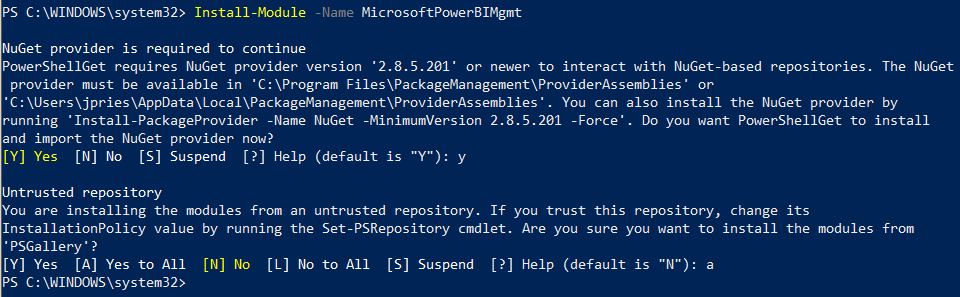
Now that the modules are installed, you can authenticate your Powershell session to the API via the following command:
Connect-PowerBIServiceAccount
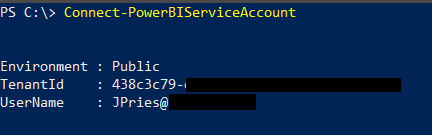
After successfully authenticating to the service, you can now launch commands to start answering questions. Workspaces are one of the most base types of objects in the Power BI API, so getting a list of workspaces that you have access to is a great place to start. You can do so with the following command:
Get-PowerBIWorkspace -All
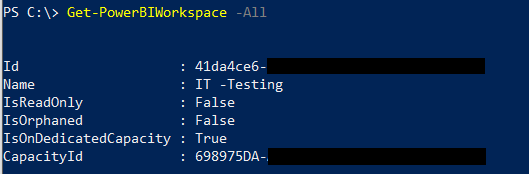
It’s really that easy. A full list of currently supported Powershell commands and their syntax can be found here.
Taking The Powershell Cmdlets to the Next Level
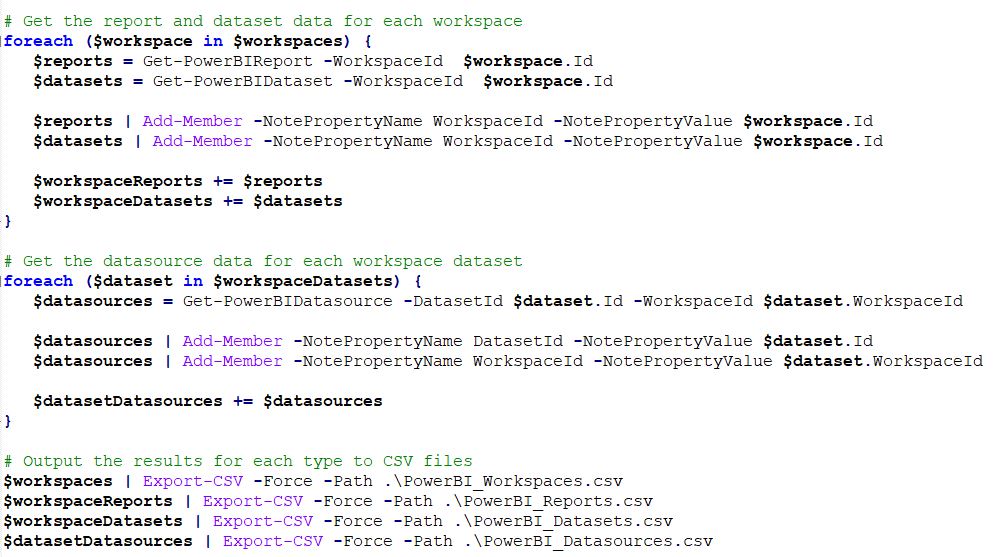
If you’re able to successfully authenticate and perform a query, you can now start to take things to the next level. To answer the above questions, I decided to try to use the Powershell Cmdlets to get a list of all Workspaces, then for each of those, get a list of all Reports in each Workspace, then for each of those, get a list of all Datasets for each Report (in each Workspace) and finally a list of all Datasources for each Dataset.
For each one of these 4 sets of data, I had PoweShell output the data to CSV files (via the Export-CSV capability).
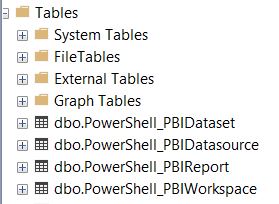
Finally, I created a basic set of SSIS packages to read the 4 CSV files that were created and import them into tables in a SQL Server database that I could then query to get answers to my questions.

With the data exported, I was now able to query the data in the SQL tables by joining the tables which held the items I was interested in based on the ID values received from the service.
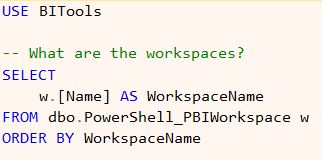
While this information was great (and the above is just a sample of some of the objects available), I wanted more. After doing some digging into the Power BI API itself (which the PowerShell cmdlets pull their data from), I learned that there was even more available through the API directly that the PowerShell cmdlets didn’t yet support (such as Apps).
In the next part, I’ll outline the process I went through on my journey to query data directly from the Power BI REST API via C#.
Resources
- My PowerShell script to download data for 4 types of Power BI objects and export to CSV file on GitHub.
- Sample SQL scripts to create the destination storage table and query them.
- SSIS package to import data from the exported Power BI CSV files into the SQL tables.
Posts in Series
- Getting Started with the Power BI API – Querying Power BI with PowerShell
- Getting Started with the Power BI API – Querying the Power BI REST API Directly (with C#)
- Power BI On-premises Gateway Cluster Monitoring (Power Platform API)
- Power BI – Granting Permission to a Custom Application in Azure Active Directory (App Registration)
- Power BI API – Usage Monitoring – Activity Log (Audit Log) Activity Event Data
- Power BI API – Usage Monitoring – Tenant Usage Data with Power BI Activity Log (C# and PowerShell)
- Power BI API – Usage Monitoring – A Power BI Report for Tenant Usage Data