SQL Server, Power BI, and other Business Intelligence and data technologies

Tag: .NET (Page 1 of 2)

Authenticating to the Power BI REST API with C# via SPN (Part 2 – C# Application)

This post will be a quick primer on authenticating to the Power BI REST API utilizing a C# console application with SPN authentication (Application ID / Client Secret) and utilizing the MSAL library.

For anybody that has followed my previous posts this method is going to be largely similar with only minor differences in the key details. SPN authentication is preferred over Username / Password authentication as it allows the console application to truly authenticate as an application and not “as a user.” This is a much more secure and better method (though it is hasn’t always been available and some API functions don’t yet support this method, sadly). Authenticating via the MSAL library instead of the ADAL library is preferred as Microsoft has announced the termination of support for the ADAL library, so best to keep with the times.

Continue reading

Authenticating to the Power BI REST API with C# via SPN (Part 1 – Cloud Setup)

A few years ago, I explored connecting to the Power BI REST API with a simple C# console application to retrieve metadata (such as a report inventory and usage information) in my post here.

In order to utilize the Power BI API, you must authenticate to it. In my post, I explored authenticating with a standard username and password. So long as you are not using multi-factor authentication (MFA), this is functional (but not necessarily the best security). If you have MFA enabled, then you cannot use a stored username and password in this manner, so we need another solution. Enter SPN authentication.

The Power BI API initially didn’t have great support for SPN authentication (basic functionality entered Preview in February of 2019), but it has improved greatly over time and is now at the point where it is very usable by custom applications that wish to read data from the API. There are a few extra configuration steps which are necessary in order to get this setup which I’ll cover below.

Continue reading

Exploring SQL Saturday Data – Getting the Data

Data for SQL Saturday events is maintained via the sqlsaturday.com website. The site makes available an XML feed for each event which includes all of the basic information for the event, including information about the event, venue, sponsors, speakers, and sessions. The data is available freely from the SQL Saturday website without the need to log in or authenticate to the site.

While getting data for an individual event is pretty straightforward (thanks to the handy XML file), there are some nuances to the process and the data which complicate things somewhat.

The SQL Saturday Website Upgrade

The most notable factor is when the event occurred relative to the SQL Saturday website upgrade. The website upgrade went live at the beginning of April, 2015. For events that were created and occurred before this time, their data would need to be upgrade or recreated in the new site (I’m not sure what process they followed, but it was not smooth for historical events). For anything post-upgrade, those events would natively exist in the new system, so the data will generally be better and more complete.

Screenshot from the old sqlsaturday.com website from before the April 2015 upgrade.
Continue reading

Exploring SQL Saturday Data – A Power BI Analysis

In October of 2013, I attended a SQL Saturday event in Charlotte, NC presented by Julie Smith and Rob Volk titled “Harvesting Web Data Using Power Query & Other Tools” (the link to the session has since broken).

Julie Smith and Rob Volk presenting ” Harvesting Web Data Using Power Query & Other Tools”

In the session, Julie and Rob downloaded data about SQL Saturday events from the sqlsaturday.com website using two different methods.

Continue reading

Usage Monitoring with the Power BI API – A Power BI Report for Tenant Usage Data

Over the past few weeks, I’ve been putting together a series of posts on how to connect to the Power BI Rest API programmatically to extract inventory and usage data from the service.

Most of those posts (listed at the bottom of this page) are fairly long and technical — as, initially getting started using a program to read Power BI data via the API can be a bit much.

This post is going to be a bit different. Short and sweet. The payoff for all that hard work authenticating to Power BI, requesting data, downloading that data, and storing it in an easy to use SQL table.

With all of the hard work out of the way, its time to build a Power BI report to explore that great Activity Log usage data.

Continue reading

Usage Monitoring with the Power BI API – Tenant Usage Data with Power BI Activity Log (C# and PowerShell)

A common task for a report developer when learning SSRS and managing your first Reporting Services environment is to access the Report Catalog and ExecutionLog tables in the Report Server SQL database to extract report inventory and usage information.

For a long time, I’ve wanted to do something similar in Power BI — list all of my reports and which ones are used the most and least (and by whom) across all of my workspaces, but due to the nature of the Power BI Service (specifically not having a local and easily accessible juicy SQL database to mine for data) it’s been a much tougher nut to crack.

Recently, I posted a blog on my experiences learning how to query the Power BI REST API in a programmatic way using a C# console application. Expanding on this I could answer a number of report and dataset inventory questions, but now I needed usage data to go along with it.

For some time now, Microsoft has made Power BI Usage data available through the Office 365 Audit Log, but this required special Office 365 permissions outside of Power BI to use. Just recently, however, Microsoft released the Power BI Activity Log, which is a Power BI specific interface into the Office 365 Audit Log data which pertains to Power BI. This means that only Power BI (Service Admin) privileges are needed and the data can be accessed via the Power BI PowerShell cmdlets or via the Power BI Rest API!

Continue reading

Usage Monitoring with the Power BI API – Activity Log (Audit Log) Activity Event Data

When using the cloud-based Power BI Service, powerbi.com, every action that is taken while logged into the portal — whether it is viewing or publishing a report, creating a new workspace, or even signing up for a pro trial license, that activity is logged within the Microsoft servers as part of the Office 365 audit logs.

Accessing these logs can be accomplished via a couple of different methods (either through the Office 365 Audit Log functionality using the Office 365 Admin Center or PowerShell cmdlets; or through the new Power BI Activity Log (Power BI Get Activity Events) functionality accessible via a PowerShell cmdlet (Get-PowerBIActivityEvent) and an API). There are a few examples out there already on how to use these commands to access the data (and I have a post on accessing the data using the Power BI API and C# coming out in a few week), but there doesn’t seem to be a lot out there about the data itself, which is what I plan to focus on here.

Continue reading

Power BI – Granting Permission to a Custom Application in Azure Active Directory (App Registration)

The Power BI Service, available at powerbi.com, utilizes Azure Active Directory to handle its authentication. This is important to know for creating a custom Power BI application (in any language — C#, Python, etc.) that reads and write from the Power BI REST API. The one exception to this would be using the Power BI PowerShell cmdlets, as they internally, use their own registration mechanism.

This post rehashes and elaborates on the information I touched on in this post, but I wanted to have a dedicated post on just this topic that I could link back to.

So, what is an App Registration? An App Registration is an entry in Azure Active Directory that lets Azure Active Directory know that you will be using a custom application and associates permissions to that application. Additionally, with the addition of permissions, it associates the application to the Azure Active Directory Resource (aka https://analysis.windows.net/powerbi/api). When your application connects to Azure Active Directory, it provides an Application ID (a GUID generated during the registration process) and some form of authentication. Depending on the type of application, the authentication might be user credentials (Delegated Permissions) or a Client Secret or Certificate (Application Permissions).

Continue reading

Power BI On-premises Gateway Cluster Monitoring (Power Platform API)

Failover clustering and load balancing was introduced to the Power BI On-premises (aka Enterprise Gateway) almost two years ago in the November, 2017 update of the software.

Recently having the need to add redundancy to a configuration of the gateway, I eagerly began researching how to best implement this configuration.

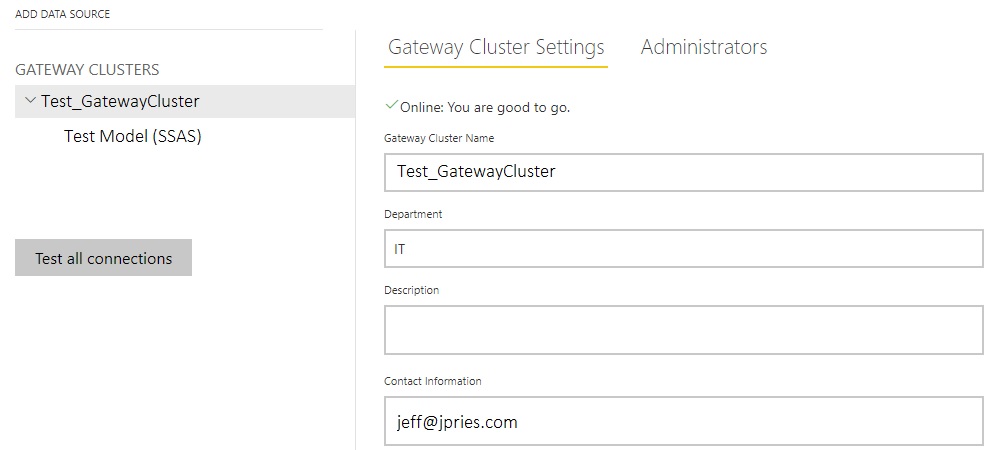
Upon successfully installing a second member to the cluster, it’s interesting to note that there is absolutely no indication in the web interface that the cluster is now two members strong instead of one. Even more interesting is that this has been this way since it was implemented in 2017.

Pop Quiz: How many Gateway Agents are installed in this Cluster? (Did you guess 2? No? Why would you?)

So, how do we see how many agents are installed in our Gateway Cluster and which version of the software is installed on each? PowerShell to the rescue once again!

Continue reading

Getting Started with the Power BI API – Querying the Power BI REST API Directly (with C#)

In my previous post I explored the idea of accessing the Power BI API via PowerShell for the purpose of reading report inventory and other object and configuration information and then loading that exported data into SQL Server tables to query to answer various questions about an organization’s configuration.

In this post, I’m going to do the same thing, but taken to the next level (and going a bit overboard) by accessing the Power BI REST API directly with a C# application I wrote.

This post is targeted toward those already comfortable writing basic programs (C#, Python, or anything capable of making a web request and parsing a JSON response). If this isn’t you, there is no harm in sticking with the PowerShell cmdlets, they’re very capable and fast to get started with. For anyone else, let’s dive in!

Continue reading
« Older posts

© 2026 Jeff Pries

Theme by Anders NorenUp ↑