 My Windows 10 journey continues. In Part 1, I worked through a few very minor hardware/driver issues. In Part 2, I addressed some styling issues with window titles. To this point, my issues have been largely cosmetic (well, maybe getting sound to play through my speakers was important!) but this next issue encountered was a bit more serious.
Since at least Windows XP, Windows has had a built in VPN client. This is useful for connecting to non-hardware specific VPN servers, such as Microsoft Routing and Remote Access. Continuing with the trend, Windows 10 also has a built in VPN client. As with previous versions of Windows, it can be configured in the same was as always. Go into the Network and Sharing Center, choose Set up a new connection or network, then choose Connect to a workplace and enter the relevant VPN information.
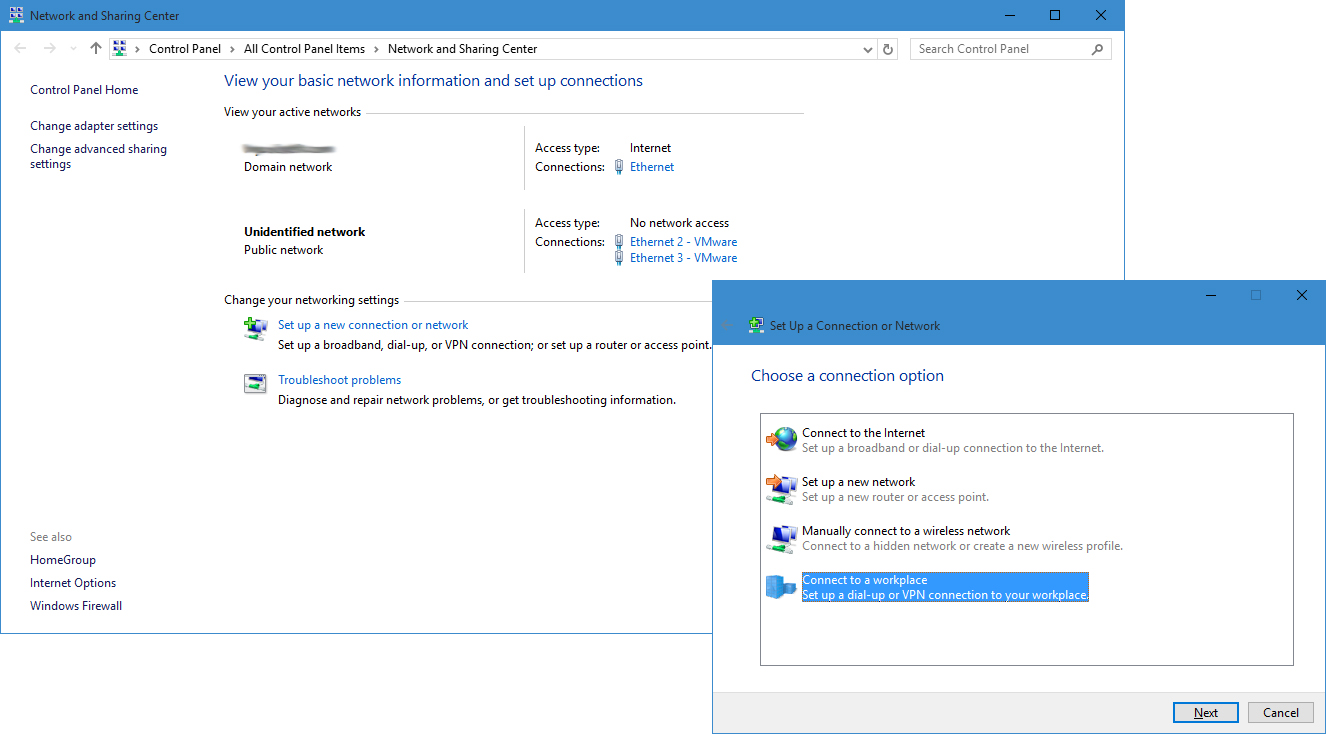
Setting up a Windows 10 VPN Client
As anyone who has configured this type of VPN knows, there is typically one more non-intuitive step remaining. With the default configuration of the Windows VPN Client, all traffic is sent across the VPN, even traffic that doesn’t need to. For instance, if you need to contact the file server on the other side of the VPN, this needs to go across it. If you need to contact google.com, this doesn’t really need to go across it. Sending unnecessary traffic across the VPN typically has a pretty significant performance impact on your non-VPN traffic. Fortunately, a feature called “split tunneling” allows for this functionality to be disabled so only VPN traffic goes across the VPN and non-VPN traffic doesn’t. Seems pretty intuitive!