The Power BI On-premise Enterprise Gateway allows for users to be added as administrators of the gateway cluster via the Powerbi.com portal.
One annoying quirk about this, however, is that at least as of this writing, it is impossible to add users (or groups) which do not have an email address via the user interface.
Attempting to do so will give the error message “These email addresses are invalid or duplicate.” Pretty annoying!

It turns out that it is actually possible to add objects which do not have email addresses associated with them (groups, users, even application SPNs), however it must be done with PowerShell.
Requirements
- PowerShell 7 or Higher — This is the new (downloadable) version of PowerShell, not the version built into Windows. It is available here.
- The DataGateway PowerShell cmdlets — These are installed by running the following command after launching PowerShell 7+: Install-Module -Name DataGateway
Get the Gateway Cluster Identifier
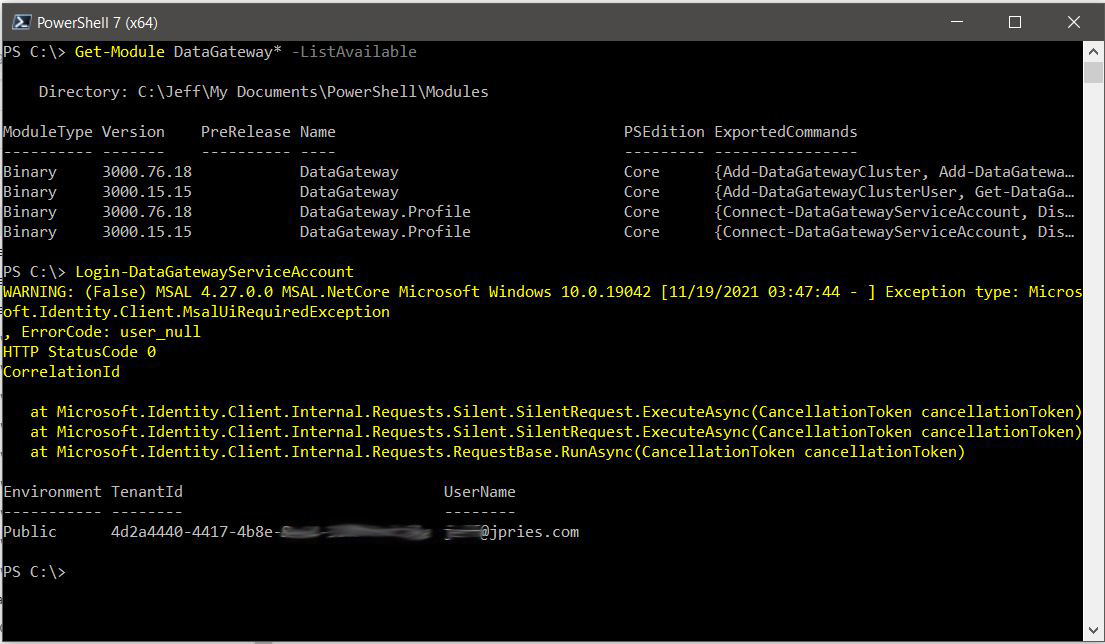
- Run the Login-DataGatewayServiceAccount command within PowerShell 7 and authenticate as a user that is an administrator of the Gateway Cluster.
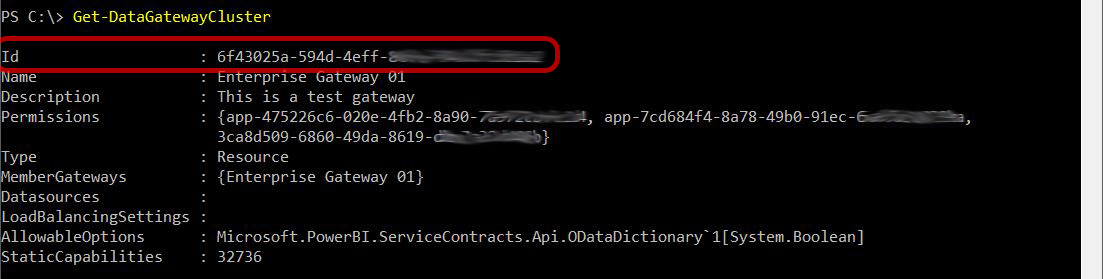
2. Run the Get-DataGatewayCluster command and make a note of the unique identifier on the Id row for the Gateway Cluster name which you wish to add a user/object to.
3. Get the Object ID of the User, Group, or SPN which you wish to add to the Gateway Cluster. The easiest way to do this is via the UI at https://portal.azure.com however this can also be done via PowerShell with a few extra steps (see below section).
4. Perform the add by run the following command. You should have no output upon success:
Add-DataGatewayClusterUser -GatewayClusterId -PrincipalObjectId -AllowedDataSourceTypes $null -Role Admin

5. Go back to the Manage Gateways section in the PowerBI.com UI and check the Administrators. If everything worked, you should see the entry you added in a dark red font in the list of Administrators.
As a note, in one test I did, adding a group showed up in the interface, but the permissions didn’t seem to take effect, so you may have better luck adding individual objects (SPNs or Users) over groups. It’s worth a test.
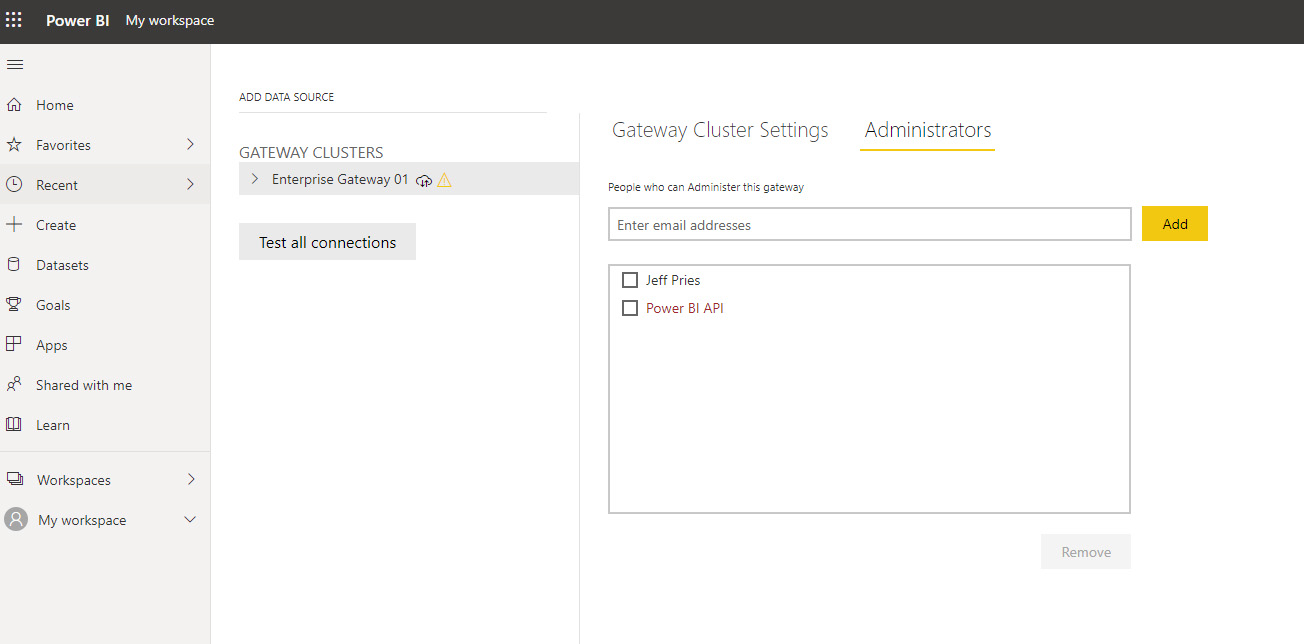
If an object doesn’t show up in the UI, it may still be there. If you run the PowerShell 7 Get-DataGatewayCluster command again, you’ll hopefully see the Object ID you’re looking for in the Permissions row of the output.
(Optional) Getting Object IDs for Azure Active Directory Users, Groups, or SPNs via PowerShell (instead of via UI)
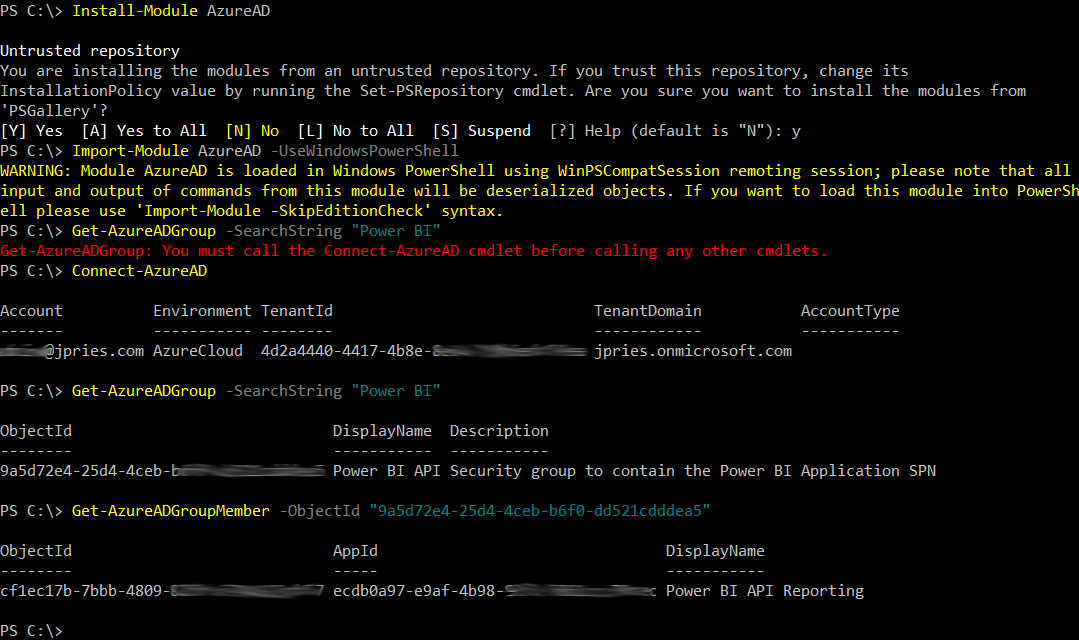
Install the AzureAD PoweShell module. If using PowerShell 5 (built into Windows), do so with the commands:
Install-Module AzureAD
Install-Module Az.Resources (only needed to lookup an SPN)
If using PowerShell 7 (downloaded), do so with the commands:
Install-Module AzureAD
Import-Module AzureAD -UseWindowsPowerShell
Install-Module Az.Resources (only needed to lookup an SPN)
Whether using PowerShell 5 or PowerShell 7, you can now authenticate to Azure AD with the following command (log in with an account that has permissions to view AD objects):
Connect-AzureAD
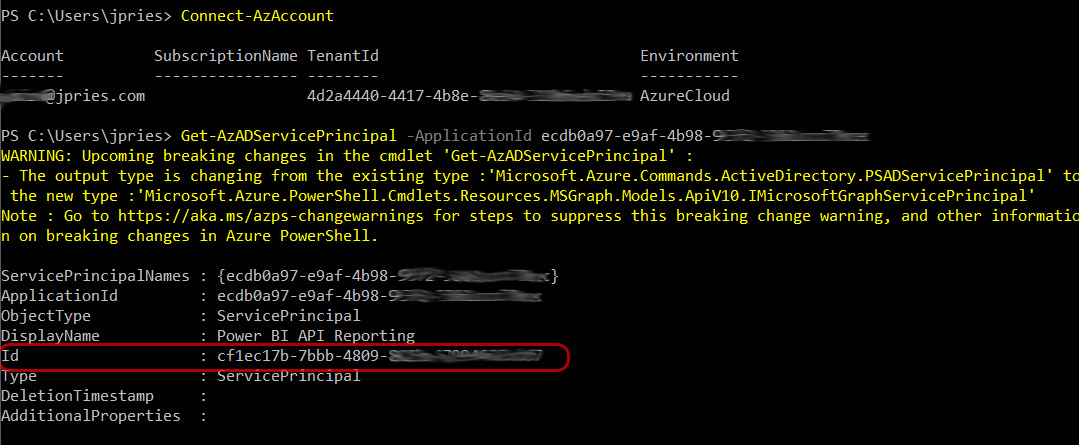
Connect-AzAccount (only needed to lookup an SPN)
Get the Object ID for a group with the command:
Get-AzureADGroup -SearchString “Power BI”
Or, get the members for a group with the command (using the Object ID from the previous statement)
Get-AzureADGroupMember -ObjectId “9a5d72e4-25d4-4ceb-1111-11111111111”
To get an SPN, you’ll need the application ID (which we got from the group member command above as our Application was a member of a group):
Resources