 Recently, I experienced an issue trying to get a new installation of Microsoft Excel 2016 to connect to SQL Server 2014 Analysis Services Multidimensional. Whether I would try to connect directly from Excel, via the “From Other Sources” menu or via the Cube Browser in SQL Server Management Studio, I would receive an error that Excel was unable to connect to the database.
I verified that the service was running, firewall not blocking it, and credentials good. Read on for the solution to this issue.
Upon attempting to connect to a SQL Server 2014 Analysis Services Multidimensional cube via the From Other Sources -> From Analysis Services menu, I would receive an error that Excel was unable to connect to the data source.


Unable to connect to data source. Reason: Unable to locate database server.
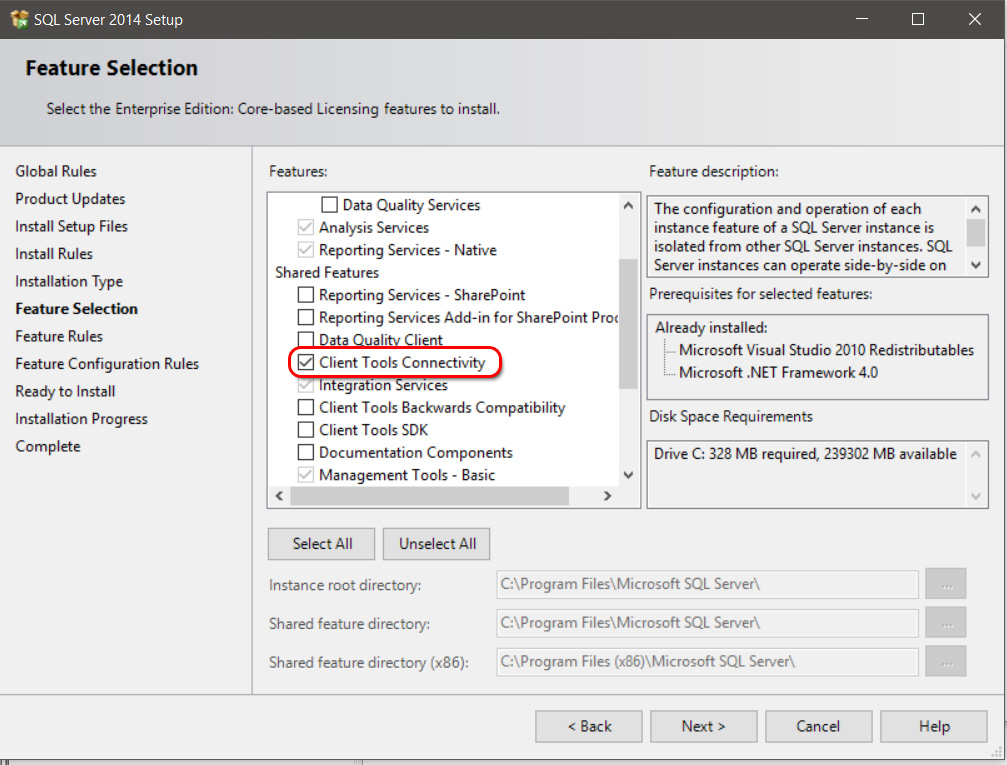
The first solution I attempted was to install the Client Tools Connectivity shared features to my existing Analysis Services installation. Unfortunately, I still received the error after this step.
Next, I re-registered the Analysis Services MOLAP DLL from the installation directory via the regsver32 utility via the following command:
regsvr32 “C:\Program Files\Microsoft Analysis Services\AS OLEDB\120\msolap120.dll”
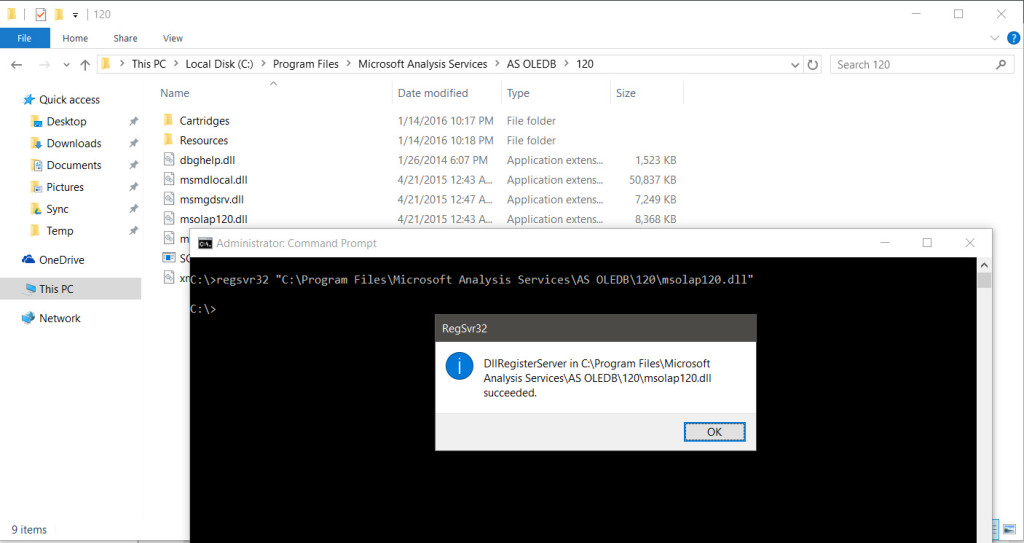
Upon re-registering the DLL, I was now successfully able to connect to the Analysis Services cube via Excel and the link in SQL Server Management Studio.